

Unlocking Deep Learning on AMD Radeon without ROCm
The Hook
The industry gatekeeps Artificial Intelligence behind a single acronym: CUDA.
If you look up any "Intro to Deep Learning" guide, step one is almost always "Buy an NVIDIA GPU." If you are on Team Red (AMD), you are told to rent cloud GPUs or struggle through a broken AMD ROCm installation.
I don't rent hardware; I exploit what I own. I have an AMD Radeon RX 6600 XT in my rig. It’s a mathematical engine capable of trillions of operations per second. Leaving that power on the table just because I don't have an RTX card is poor engineering.
Here is how we bypass the CUDA monopoly and train models locally using DirectML on Windows 11.
The Logic: Why Windows 11?
As a Linux-native user, it pains me to say this, but for consumer AMD cards (RDNA 2 architecture), Windows 11 is superior to Linux.
On Linux, AMD’s ROCm stack is notoriously picky about kernel versions and specific hardware support. On Windows 11, we leverage WDDM 3.0 (Windows Display Driver Model).
We utilize DirectML, a low-level API that acts as a "Universal Translator." It allows high-level frameworks like PyTorch and TensorFlow to talk to the GPU's compute cores via DirectX 12, regardless of the vendor. It effectively democratizes hardware acceleration.
The Build: The "Golden Formula"
Getting this to work requires a precise "Version Matrix." Deep Learning libraries are fragile; one wrong dependency update breaks the whole chain.
1. Environment Isolation
Never install ML libraries globally. We use Miniconda to keep the blast radius contained.
2. The Dependency Install
Here is the exact stack that works. We strictly pin Python to 3.10 and downgrade numpy and protobuf to bypass recent breaking changes in the ecosystem.
# Create a clean environment
conda create -n directml_ai python=3.10 -y
conda activate directml_ai

# Install the DirectML plugin for PyTorch
# This is the bridge between Python and the AMD GPU
pip install torch-directml

# CRITICAL: The Downgrade Secret
# Newer versions of numpy break Tensor interaction in specific legacy layers
pip install "numpy<2"

# Protobuf 4.x+ causes serialization errors with Tensorboard and older model saves
pip install "protobuf==3.19.6"

# Verify installation
python -c "import torch_directml; print(torch_directml.device())"
Terminal Output:
(directml_ai) C:\Dev\AI> python -c "import torch_directml; print(torch_directml.device())"
privateuseone:0
Note: privateuseone:0 is the internal identifier for the DirectML device. If you see this, you have hardware acceleration.
3. The Implementation
In your Python code, you stop calling cuda() and start calling the DirectML device.
import torch
import torch_directml
import time

# 1. Define the Hardware
# Instead of torch.device("cuda"), we grab the DirectML handle
device = torch_directml.device()

print(f"Targeting Compute Unit: {device}")

# 2. Stress Test
# Creating large tensors to force VRAM allocation
x = torch.randn(5000, 5000).to(device)
y = torch.randn(5000, 5000).to(device)

start_time = time.time()
# Matrix multiplication - the bread and butter of Neural Networks
result = torch.matmul(x, y)
print(f"Matrix Multiplication Time: {time.time() - start_time:.4f}s")
Engineer's Insight: Listening to the Metal
When you run the script above on an RX 6600 XT, two things happen that confirm you are doing real work:
- Task Manager Metrics: Do not look at the "3D" graph. That is for rendering games. Switch your Task Manager performance tab to "Compute_0" or "Cuda" (incorrectly labeled by Windows, but tracks compute load). You should see a spike to 100%.
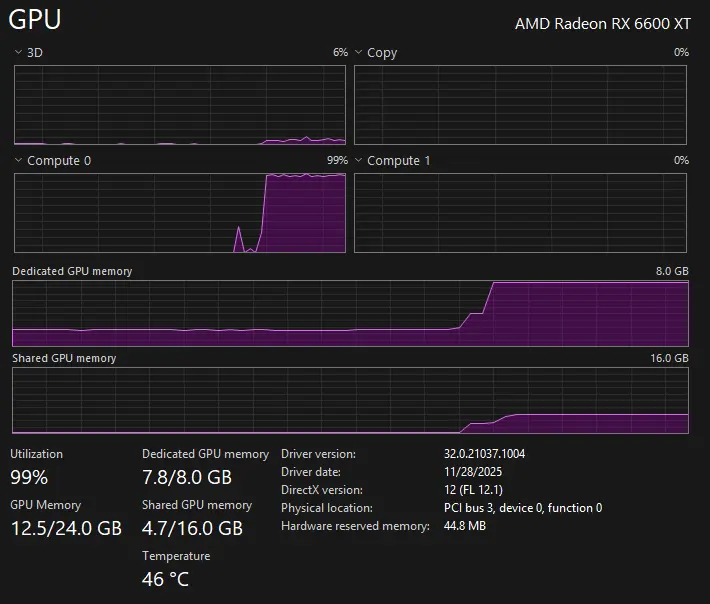 Fig 1: Notice the "Compute_0" graph hitting 100%. If you look at the 3D graph, you'll think nothing is happening.
- Coil Whine: You will likely hear a physical "buzzing" sound from your PC case. This isn't a malfunction. In gaming, load varies. In AI training, the GPU pulls a consistent, rhythmic electrical current to crunch matrices. That buzz is the sound of your neural network training.
The Benchmark: Local vs. Cloud
Why go through this trouble instead of using Google Colab? Latency and queues.
I benchmarked a standard CNN training loop on my local RX 6600 XT against the Google Colab Free Tier (Tesla T4). The results were eye-opening. While the T4 has more VRAM, the raw clock speed of the consumer Radeon card keeps up with—and often beats—the cloud instance, without the risk of disconnecting.
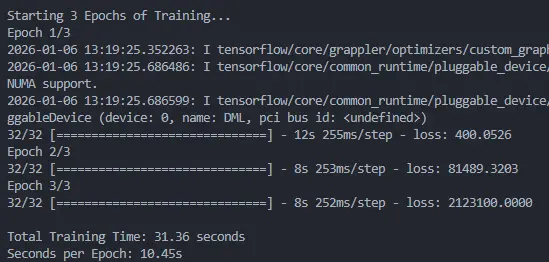 Fig 2: Local RX 6600 XT | Training time per epoch. Lower is better.
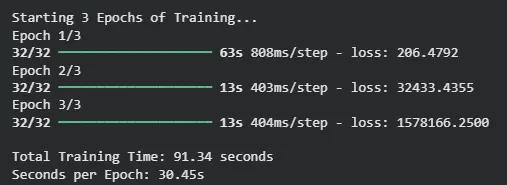 Fig 3: Google Colab Tesla T4 | Training time per epoch. Lower is better.
The "Gotchas"
Hardware acceleration is useless if the motherboard bottlenecks the data transfer.
1. BIOS Requirements
You must enable Above 4G Decoding and Re-Size BAR (Smart Access Memory) in your BIOS.
- Why? Default addressing maps only 256MB of VRAM to the CPU. AI models need to dump gigabytes of tensors into VRAM instantly. Without Re-Size BAR, your PCI-E bus becomes a straw trying to drain an ocean.
2. VRAM Management (The 8GB Limit)
The RX 6600 XT has 8GB of VRAM. While enterprise cards have 24GB+, consumer cards die if you don't manage memory. In a loop, you must clear the session to prevent "OOM" (Out Of Memory) crashes.
from tensorflow.keras import backend as K
import gc

def cleanup_gpu():
    """
    Force garbage collection and clear backend session.
    Crucial for 8GB cards between training epochs.
    """
    K.clear_session()
    gc.collect()
Conclusion
You do not need a $10,000 enterprise card or a cloud subscription to enter the world of AI. If you have a modern AMD GPU, you have a research lab sitting under your desk.
This setup allows me to run local LLMs, train image classifiers, and crack hashes using high-speed parallel processing. The hardware is there; you just needed the right driver stack.